Overview
The Form Builder Items module allows users to manage which system default form items are available when creating forms. This module provides control over the types of input fields, selection options, and other form elements that users can add to their custom forms.
Refer: Safety Forms
Accessing Form Builder Items
Navigation Path:
- Go to Configuration in the main menu
- Select System Setup
- Click on Form Builder Items
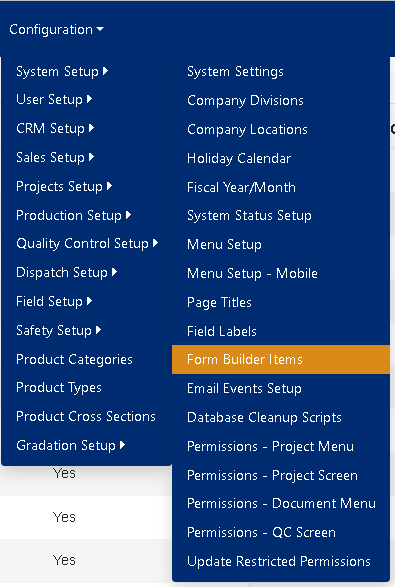
Figure 1
Available Form Builder Items
The system includes various pre-configured item types that can be enabled or disabled:
Selection Items
- Checkbox - Single or multiple select checkboxes
- Date Picker - Date/time selection with calendar option
- Dropdown List - Dropdown selection menu
- Radio List - Group of radio buttons
- Pass/Fail Radio Group - Pass/Fail selection options
- Pass/Fail/N/A Radio Group - Pass/Fail/Not Applicable options
- Yes/No Radio Group - Binary Yes/No selection
Input Fields
- Text Area - Multi-line text input box
- Text Field - Single line text input box
- Email Input - Email address text box with validation
- Numeric Input - Numeric input text box
- Telephone Input - Telephone input text box
Structural Elements
- Section Header - Text header to divide form areas
- Image - Insert image between input items
- Line Item - Line item for a space or text when label
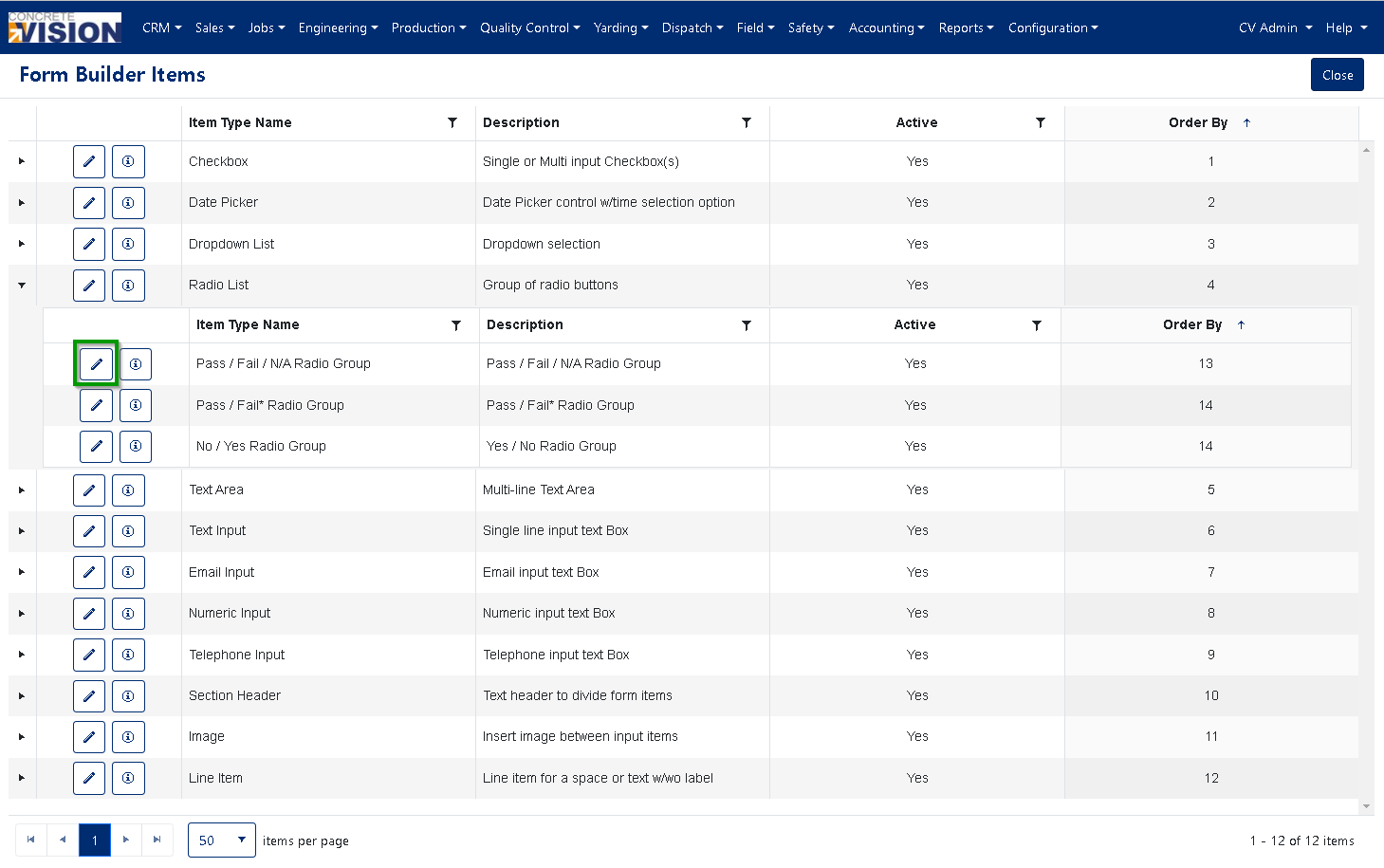
Figure 2
Editing Form Builder Items
How to Edit an Item
- Locate the item you want to modify in the Form Builder Items list
- Click the Pen icon (✏️) on the left side of the item row (Green box, Figure 2)
- The editing modal will open with the following fields (Figure 3):
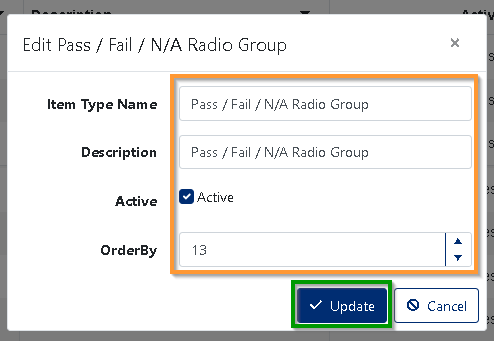
Figure 3
Editable Fields
Item Type Name
- The display name shown to users when building forms
- Should be clear and descriptive
Description
- Detailed explanation of what the item does
- Helps users understand when to use this item type
Active Status
- ✓ Checked - Item is available for use in form creation
- ☐ Unchecked - Item is hidden from form builders
- Use this to temporarily disable items without deleting them
OrderBy
- Numeric value that controls the display order
- Lower numbers appear first in the list
- Example: Items with OrderBy 1, 5, 10 will display in that sequence
Saving Changes
- Review your modifications in the modal
- Click the Update button (green) to save changes (Green box, Figure 3)
- Click Cancel to discard changes and close the modal
Was this article helpful?
That’s Great!
Thank you for your feedback
Sorry! We couldn't be helpful
Thank you for your feedback
Feedback sent
We appreciate your effort and will try to fix the article