Accessing the Screen
Navigate to Jobs > Job Milestone Dates from the main menu (Figure 1).
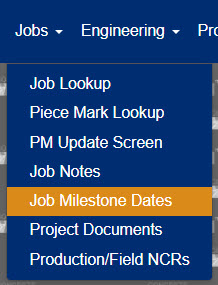
Figure 1
Using the Job Milestone Dates Screen
The Job Milestone Dates screen (Figure 2) allows project managers to view job status, key contacts, phases, phase status, and milestone dates in a single table.
- Items per page and page navigation is located in the bottom left of the screen (orange box in Figure 2).
- The right side of the table scrolls horizontally to view additional milestone dates (teal box in Figure 2).
- If the Estimated date has passed without the Actual date being filled in, the corresponding Actual cell will be highlighted yellow.
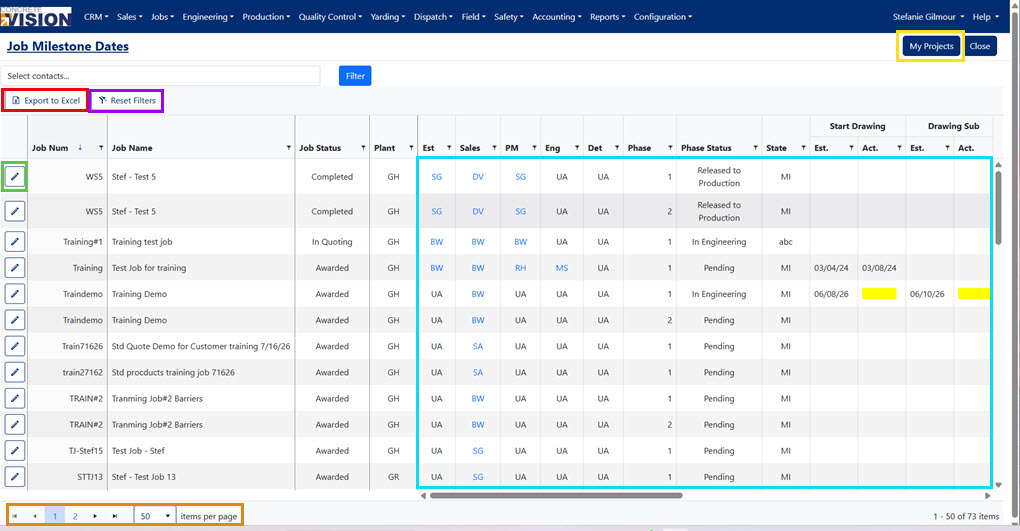
Figure 2
Sort the Job Milestone Dates Table
The Job Milestone Dates table is sorted by clicking on column headings.
- Click a column headings to sort the table by that headings category.
- Click the same column heading again to change the sort by to be descending instead of the default ascending.
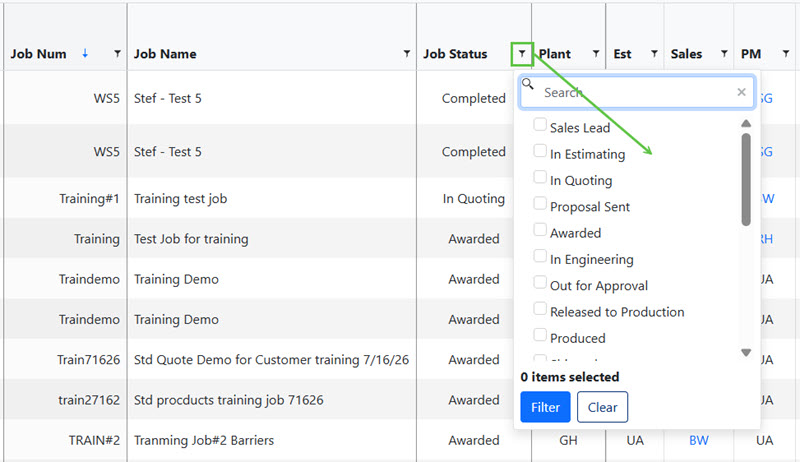
Figure 3
Filter the Job Milestone Dates Table
Each column heading with a filter icon (green box in Figure 3) can be sorted by filter parameters (green arrow in Figure 3) for that column.
- Click a Filter icon (green box in Figure 3) to open the filter menu for that column.
- Enter, change, and select any of the inputs/items to obtain specific results or fewer.
- Click the blue Filter button (blue button in Figure 3) in the filter menu.
- To clear/reset a current filter press the Clear button.
Note: To quickly apply a filter where you are the Project Contact, click the My Projects button (yellow box in Figure 2).
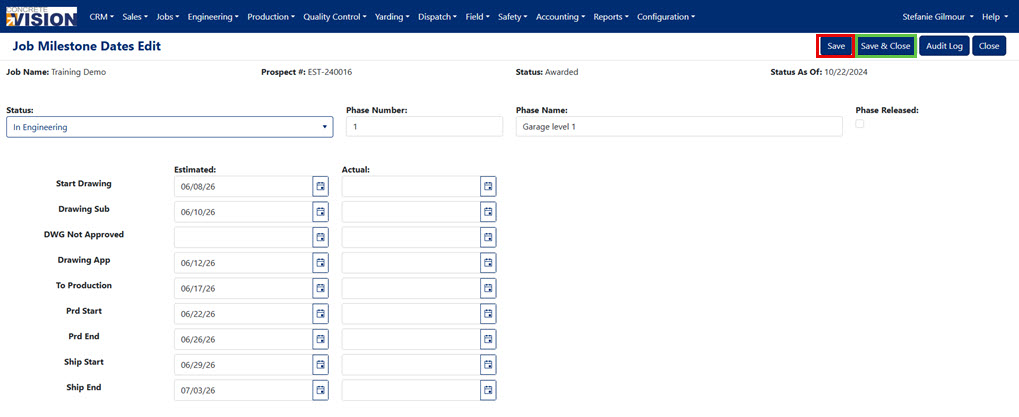
Figure 4
Edit Job Milestone Dates
To edit the Milestone Dates for a job from the Job Milestone Dates screen:
- Click the corresponding Edit icon (green box in Figure 2). The Job’s Milestone Dates Edit screen will load (Figure 4).
- Add or adjust Estimated and Actual dates as needed.
- Click the Save button (red box in Figure 4) to save changes or the Save & Close button (green box in Figure 4) to save changes and return to the previous screen.
Export Job Milestone Dates
The Job Milestone Dates screen can be exported to an Excel file by clicking the Export button (red box in Figure 2).
Was this article helpful?
That’s Great!
Thank you for your feedback
Sorry! We couldn't be helpful
Thank you for your feedback
Feedback sent
We appreciate your effort and will try to fix the article