Overview
The Estimate Sections screen is used to define section names as subcategories for estimate headers. This allows the addition of estimate sections (ex. Labor Cost) categorized by an Estimate Header (ex. Plant) and grouped in the estimate's summary by the Estimate Summary Group (ex. Plant) of a customized estimate.
Accessing the Estimate Sections Screen
Navigate to Configuration > Accounting Setup > Estimate Sections from the main menu (Figure 1).
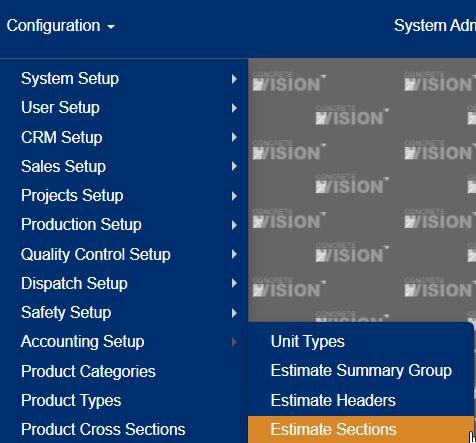
Figure 1
Using the Estimate Sections Screen
The Estimate Sections screen (Figure 2) is where you can edit, delete, add, and view estimate sections.
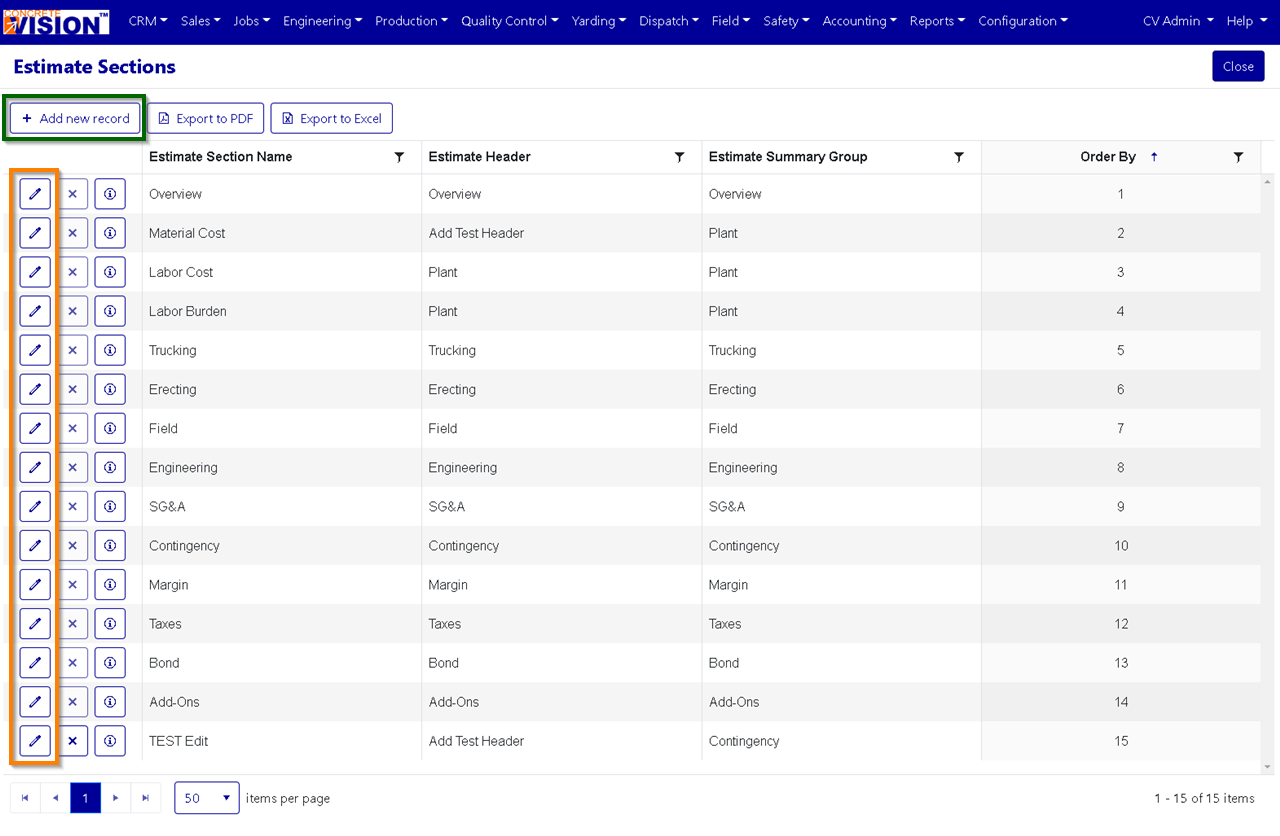
Figure 2
Add an Estimate Section
From the main Estimate Sections screen (Figure 2):
- Click the Add new record button (green box in Figure 2). The Add New window will open.
- Enter an Estimate Section Name.
- Select an Estimate Header from the dropdown.
- Select an Estimate Summary Group from the dropdown.
- Enter the order by.
- Click on the Update button to save the new estimate section (green box in Figure 3).
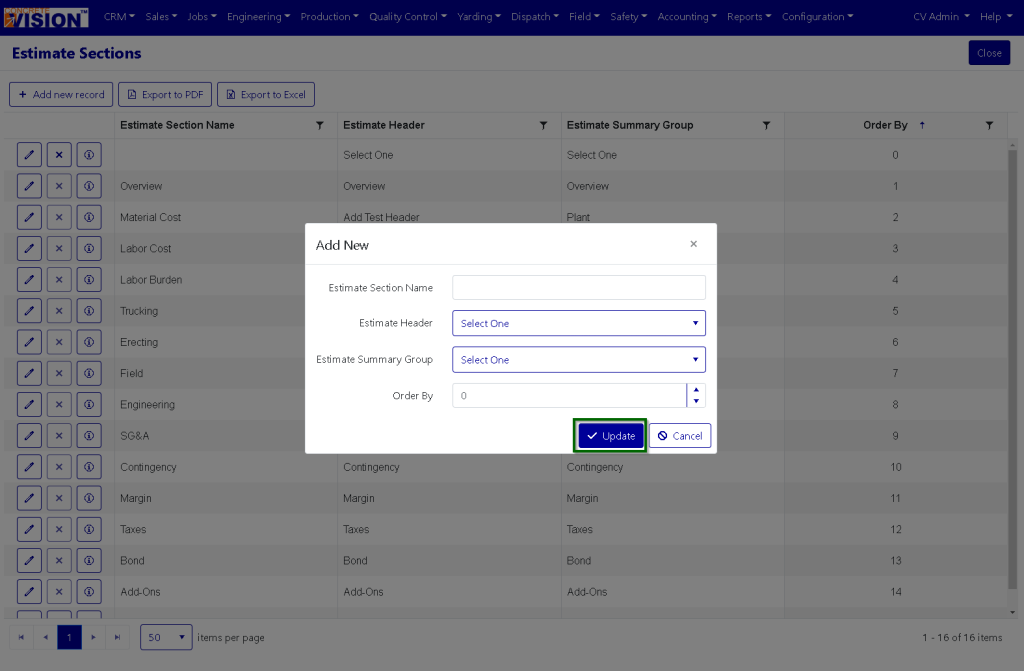
Figure 3
Edit an Estimate Section
From the main Estimate Section screen (Figure 2):
- Click the Edit icon (orange box in Figure 2). The Edit window will appear.
- Make any required edits.
- Click the Update button to save the edits to the Estimate Section (green box in Figure 4).
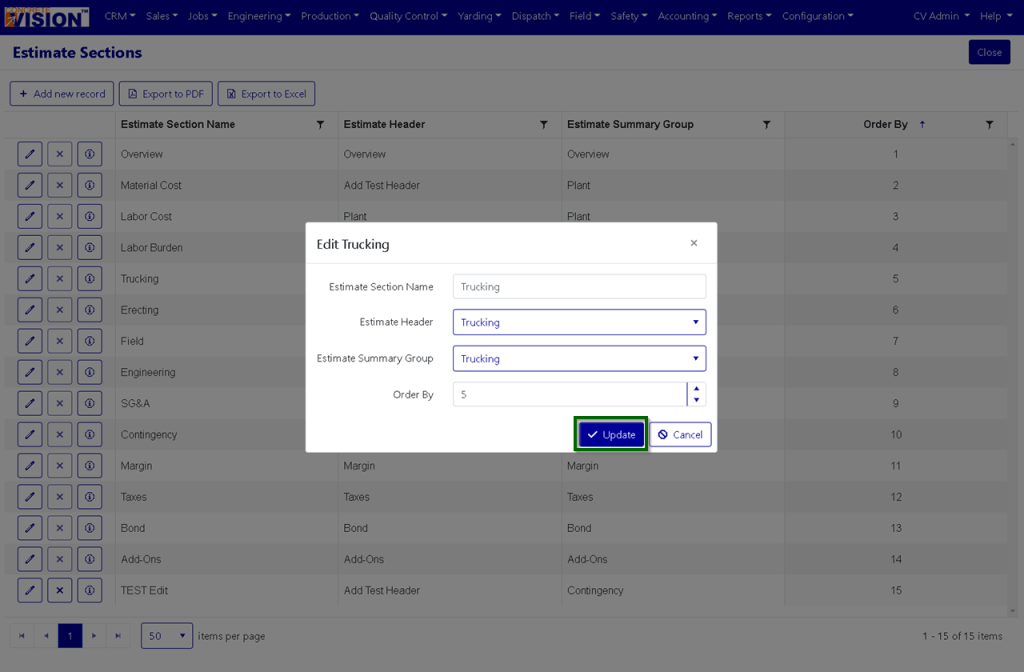
Figure 4
Delete an Estimate Section
From the main Estimate Section screen (Figure 2):
- Click the Delete icon in the corresponding row of the Estimate Header to remove (red box in Figure 5). Note: You cannot delete an Estimate Section if it is in use.
- Click "OK" in the dialogue box that appears to confirm the deletion of the record.

Figure 5
Export a List of Estimate Sections
A list of Estimate Sections in Concrete Vision can be exported from the Estimate Sections screen via buttons at the top left.
- To export the list as a pdf, click the Export to PDF button.
- To export the list as a .xlsx, click the Export to Excel button.
Was this article helpful?
That’s Great!
Thank you for your feedback
Sorry! We couldn't be helpful
Thank you for your feedback
Feedback sent
We appreciate your effort and will try to fix the article