You access the Yard Map screen from the Yarding menu, shown below in Figure 1.
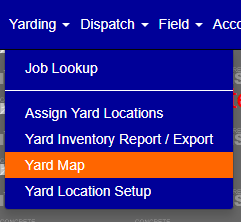
Figure 1
The Yard Map screen (see Figure 2) is where you can view Yard Maps.
Search for a Yard

Figure 2
To search for a yard map to view:
- Select a location
- Select a specific yard for that location
After defining the yard you want to view, click the "Search" button (see Green box in Figure 2).
View Yard Map
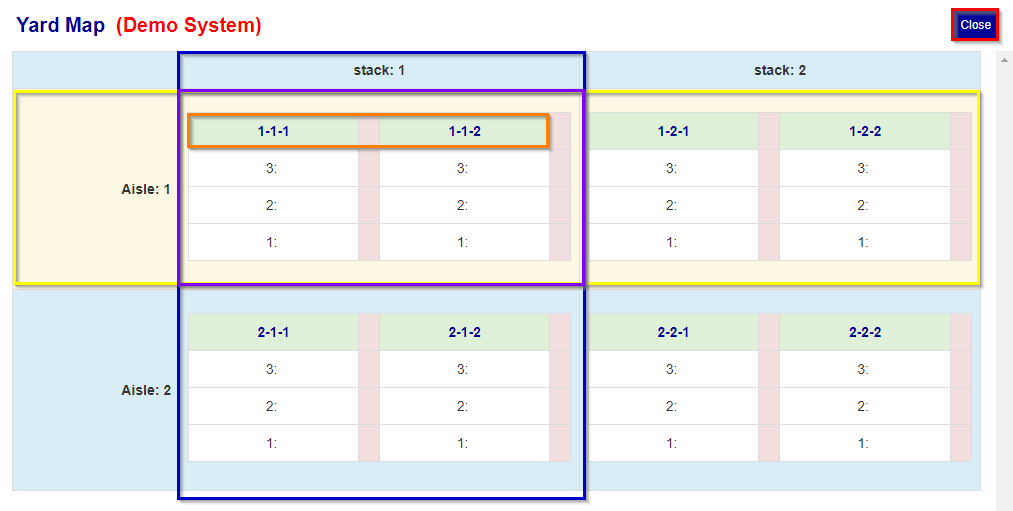
Figure 3
When viewing the yard map:
- The main columns represent the different stacks (see Blue box in Figure 3).
- The main rows represent the different aisles (See Yellow box in Figure 3).
- The secondary table headers represent the different piles (See Orange box in Figure 3).
- The secondary table elements under the secondary table headers represent the position.
Was this article helpful?
That’s Great!
Thank you for your feedback
Sorry! We couldn't be helpful
Thank you for your feedback
Feedback sent
We appreciate your effort and will try to fix the article