Overview
The Fiscal Year/Month screen allows you to add or edit dates that correspond to each fiscal month and year in the system. This guide will walk you through accessing this feature and performing common tasks.
Accessing the Fiscal Year/Month Screen
- Navigate to the Configuration menu
- Select System Setup
- Click on Fiscal Year/Month
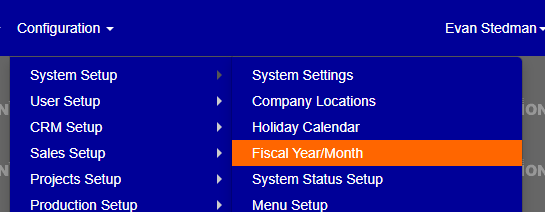
Figure 1
The Fiscal Year/Month Interface
The main Fiscal Year/Month screen displays all configured fiscal periods in a tabular format.
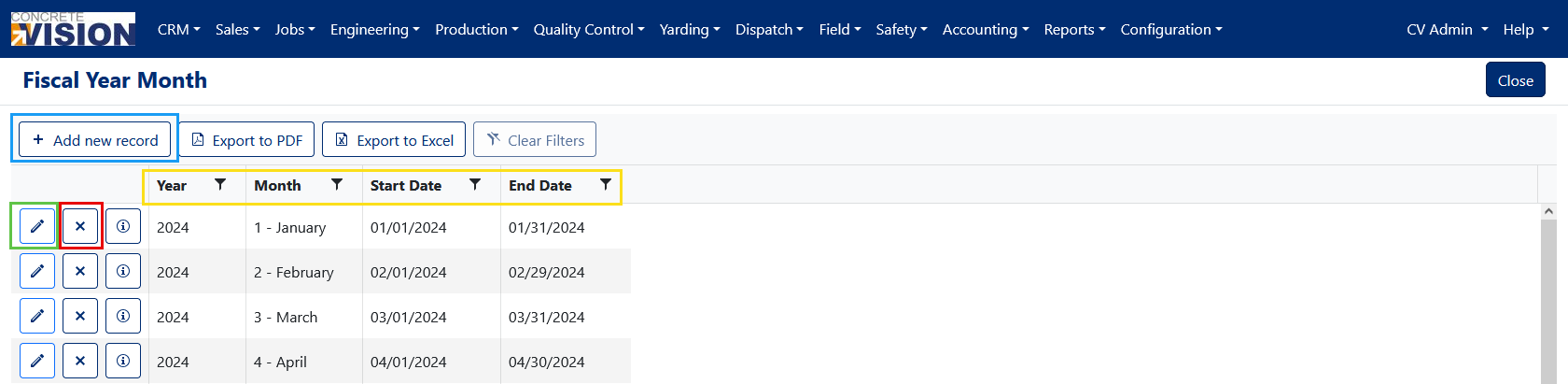
Figure 2
Managing Fiscal Months
Creating a New Fiscal Month
- Click the [+ Add new record] button in the top section of the screen (Figure 2 - Blue outline)
- In the Add New window, enter the following details:
- Year
- Month
- Start Date
- End Date
- Click the Save button to create the new fiscal month
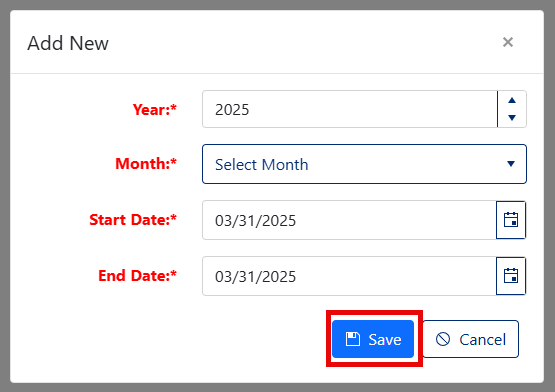
Figure 3
Searching and Filtering Records
To locate specific records:
- Use the funnel icons in the column headers to apply filters
- To remove individual filters, click the Clear button for each filter
- To remove all applied filters at once, click the Clear Filters button (Figure 4)
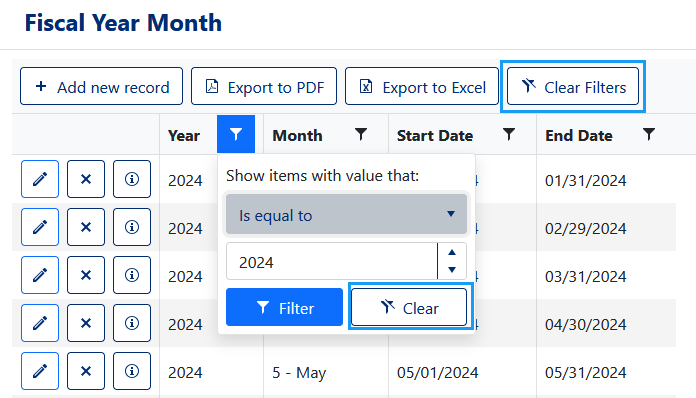
Figure 4
Editing a Date Range
- Locate the fiscal period you want to modify. (Figure 2 - Green outline)
- Change the data directly in the corresponding row.
- Click the Save button to apply your changes. (Figure 5 - Green outline)
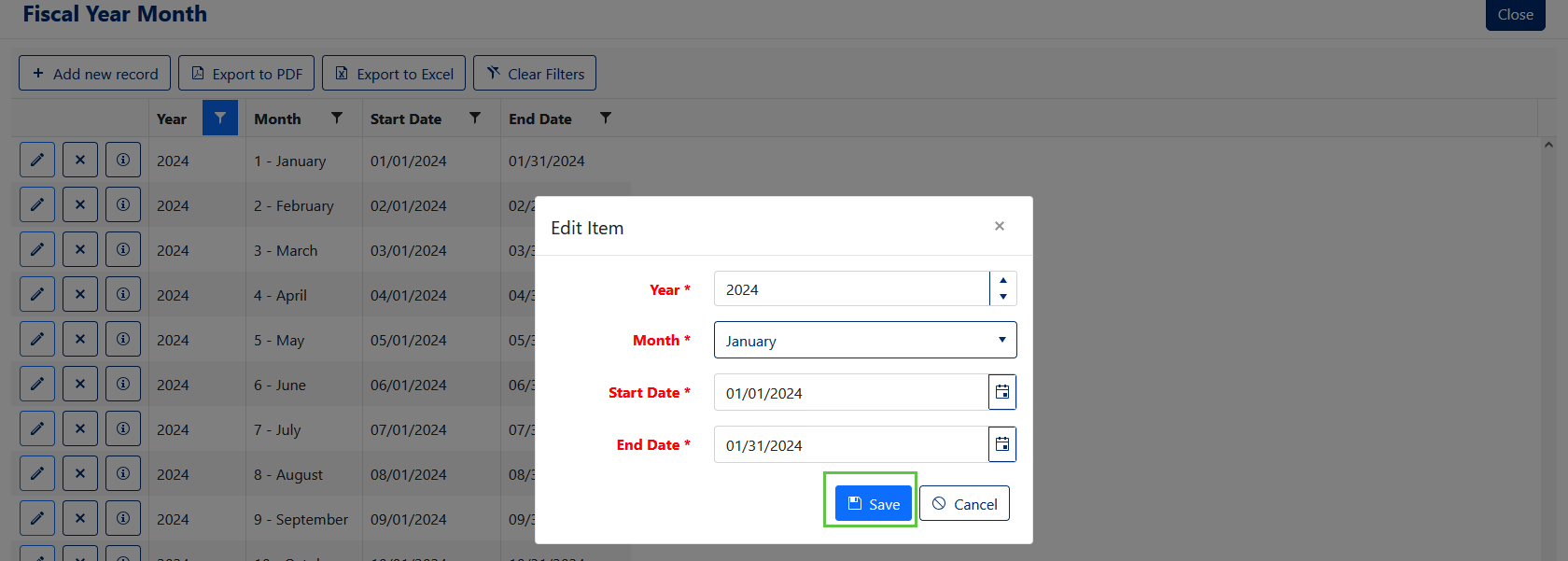
Figure 5
Removing a Date Range
- Find the fiscal period you want to delete
- Click the "X" icon in the first column of the corresponding row (Figure 2 - Red outline)
- Confirm the deletion in the popup window that appears. (Figure 6 - Red box)
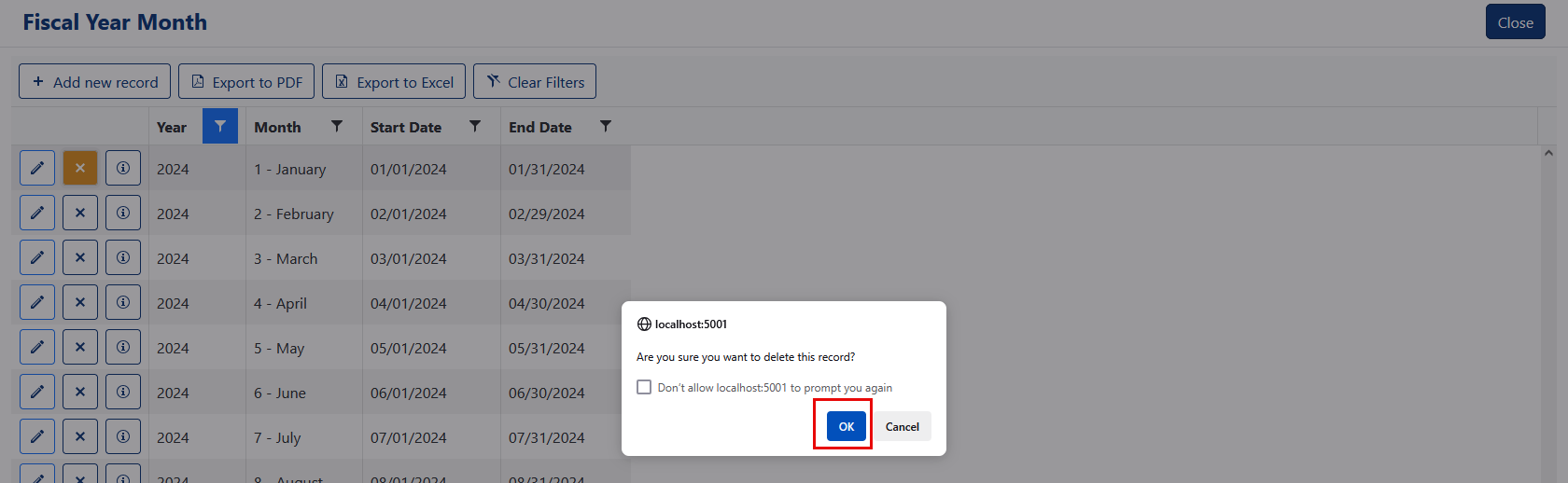
Figure 6
Was this article helpful?
That’s Great!
Thank you for your feedback
Sorry! We couldn't be helpful
Thank you for your feedback
Feedback sent
We appreciate your effort and will try to fix the article