You can navigate to the Fiscal Year/Month screen from the Configuration menu, then System Setup sub-menu (Figure 1)
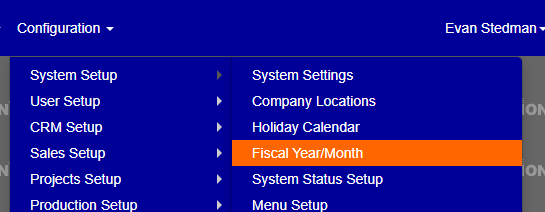
Figure 1
From the Fiscal Year/Month screen (Figure 2) you can add or edit the dates that correspond to each fiscal month and year.
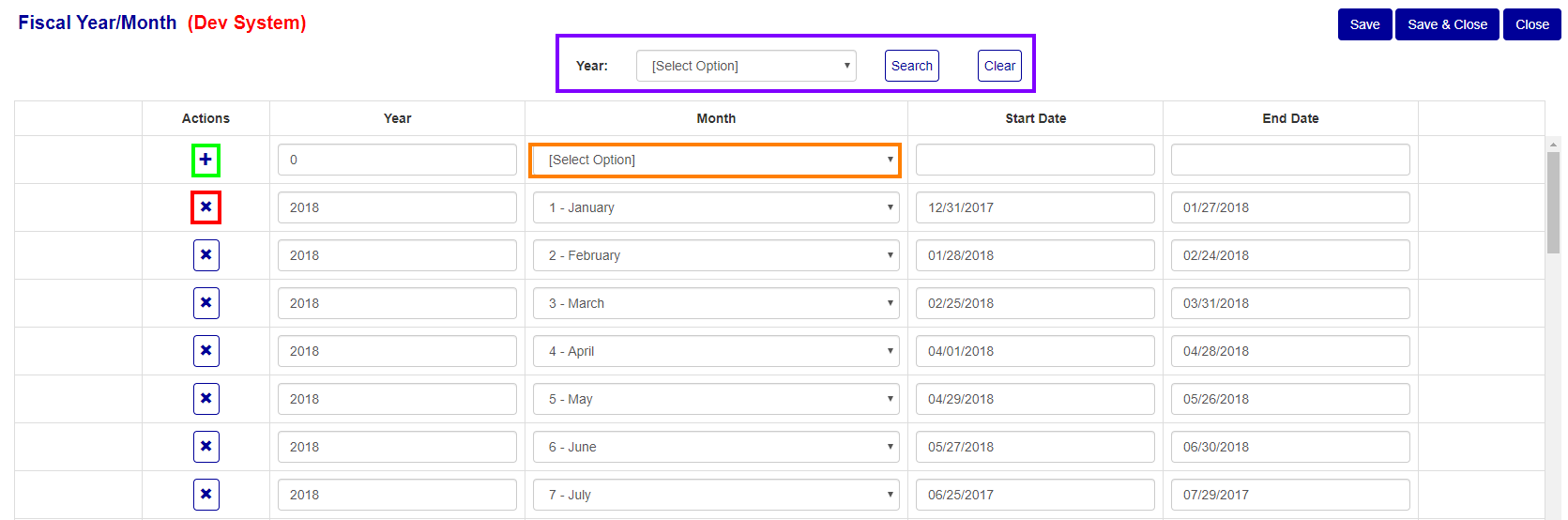
Figure 2
Search for a Year
If you want to view an existing year, use the dropdown and search button (Purple box Figure 2) to find the entries for that year. You can clear this filter using the Clear button to the right of the Search button
Add a Month and Year
To add a date range for the month and that corresponding year, fill out the first column of the table, denoted by the “+” action at the left of the row (Green box Figure 2). Enter the Year, then select a month (Orange box Figure 2) from the dropdown, then enter the corresponding dates for the start and end of that fiscal month. Once the row has been filled out, press the “+” button (Green box Figure 2) to add the information.
Edit a Date Range
To Edit a date range, change the data in the corresponding row to be adjusted, then press either the Save or Save & Close button at the top of the screen.
Remove a Date Range
To remove a row (Date Range), press the “x” action in the first column of the corresponding row to be deleted, then confirm the deletion on the popup window that appear.
Was this article helpful?
That’s Great!
Thank you for your feedback
Sorry! We couldn't be helpful
Thank you for your feedback
Feedback sent
We appreciate your effort and will try to fix the article