Accessing the Idencia Dashboard
To access the Idencia Dashboard, navigate to the Quality Control menu and select Idencia Dashboard (Figure 1).
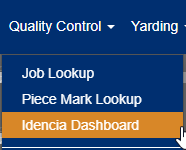
Figure 1
Adding Pieces to the Idencia Platform
Option 1: Adding All Pieces
- Expand the Pieces section of the Job by clicking the dropdown arrow (Figure 2, green outline).
- Click the Add Pieces button (Figure 2, orange outline).
- From the dropdown menu that appears (Figure 2a), select Add All Pieces to automatically queue all pieces for the next data push to Idencia.
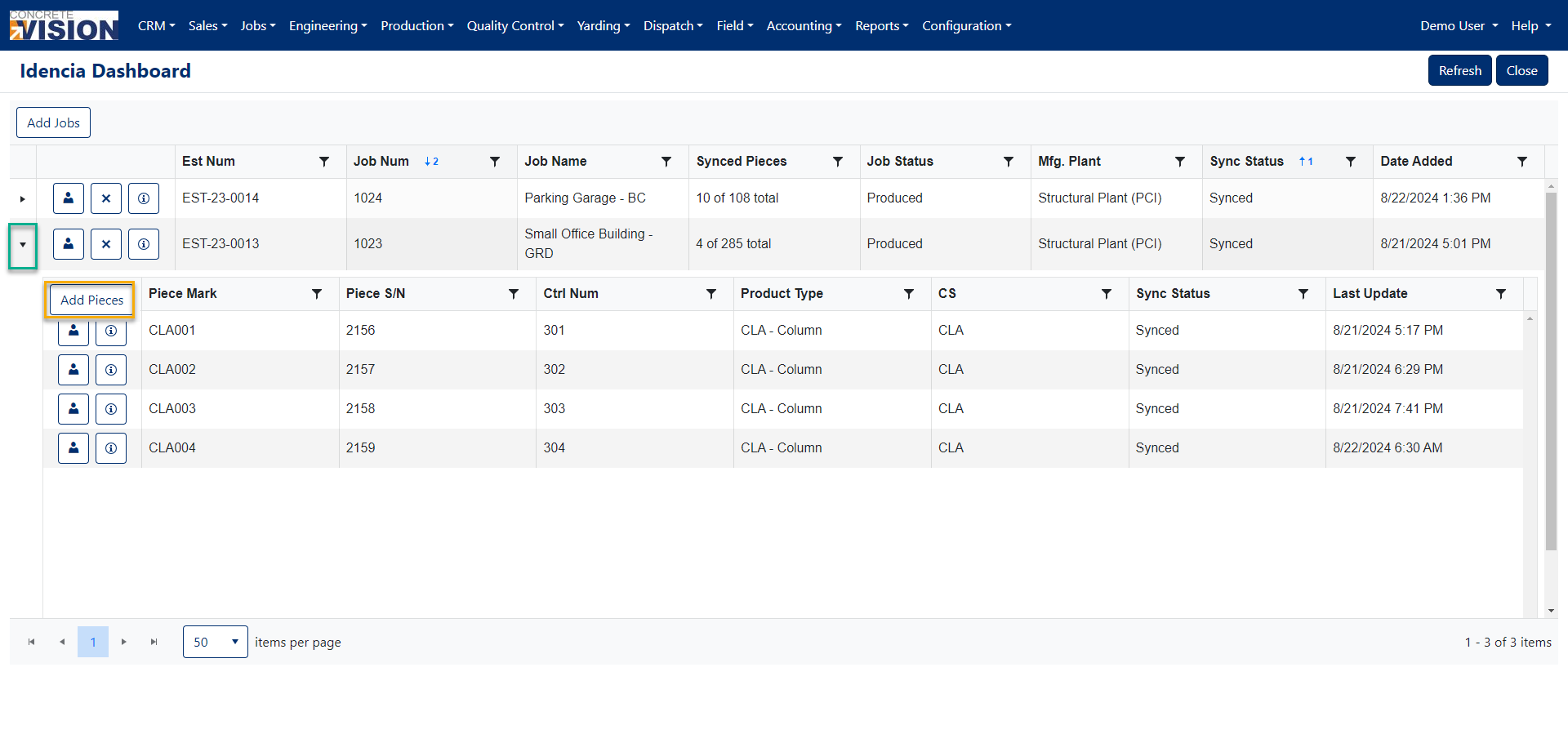
Figure 2
Option 2: Selecting Specific Pieces
- Expand the Pieces section of the Job by clicking the dropdown arrow (Figure 2, green outline).
- Click the Add Pieces button (Figure 2, orange outline).
- From the dropdown menu that appears (Figure 3), select Select Pieces to Add.
- In the Piece Search window (Figure 4):
- Use the filtering options in any column header to locate specific pieces.
- Check the boxes next to the pieces you wish to add (Figure 4, green outline).
- Click the Add button at the bottom of the window (Figure 4, orange outline).
- Selected pieces will be queued for the next data push to Idencia.
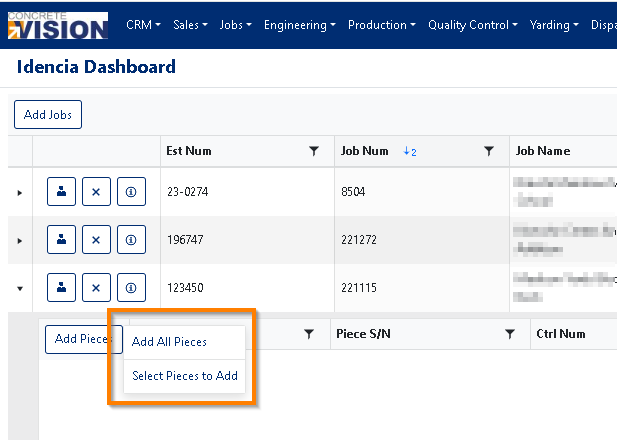
Figure 3
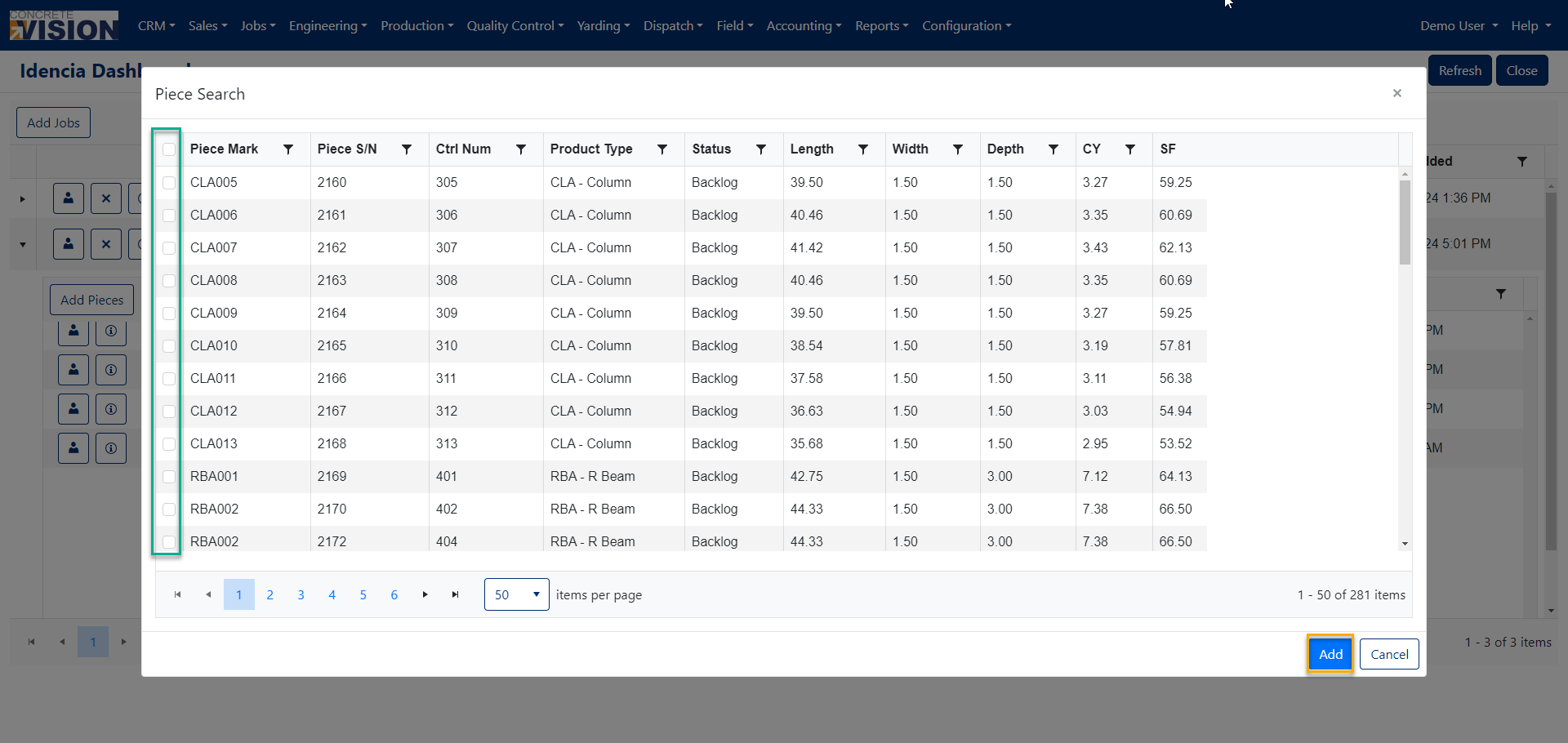
Figure 4
Was this article helpful?
That’s Great!
Thank you for your feedback
Sorry! We couldn't be helpful
Thank you for your feedback
Feedback sent
We appreciate your effort and will try to fix the article