Open the Idencia Dashboard
The Idencia Dashboard is under the Quality Control -> Idencia Dashboard menu item (Figure 1).
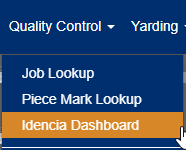 Figure 1
Adding a Job to Idencia
- Click on the Add Jobs to open the Job Search window. (Figure 2 orange outline)
- Use the filtering options from the Job Search window (Figure 3 blue button example) found on every column header item to find the Project you would like to sync to Idencia.
- Once you have the Project(s) you want to add on the screen, use the checkbox (Figure 3 green outlined items) found on the corresponding row for the project to add it.
- Click the Add button (Figure 3 orange outline) at the bottom of the Job Search window to queue the project(s) to sync to Idencia.
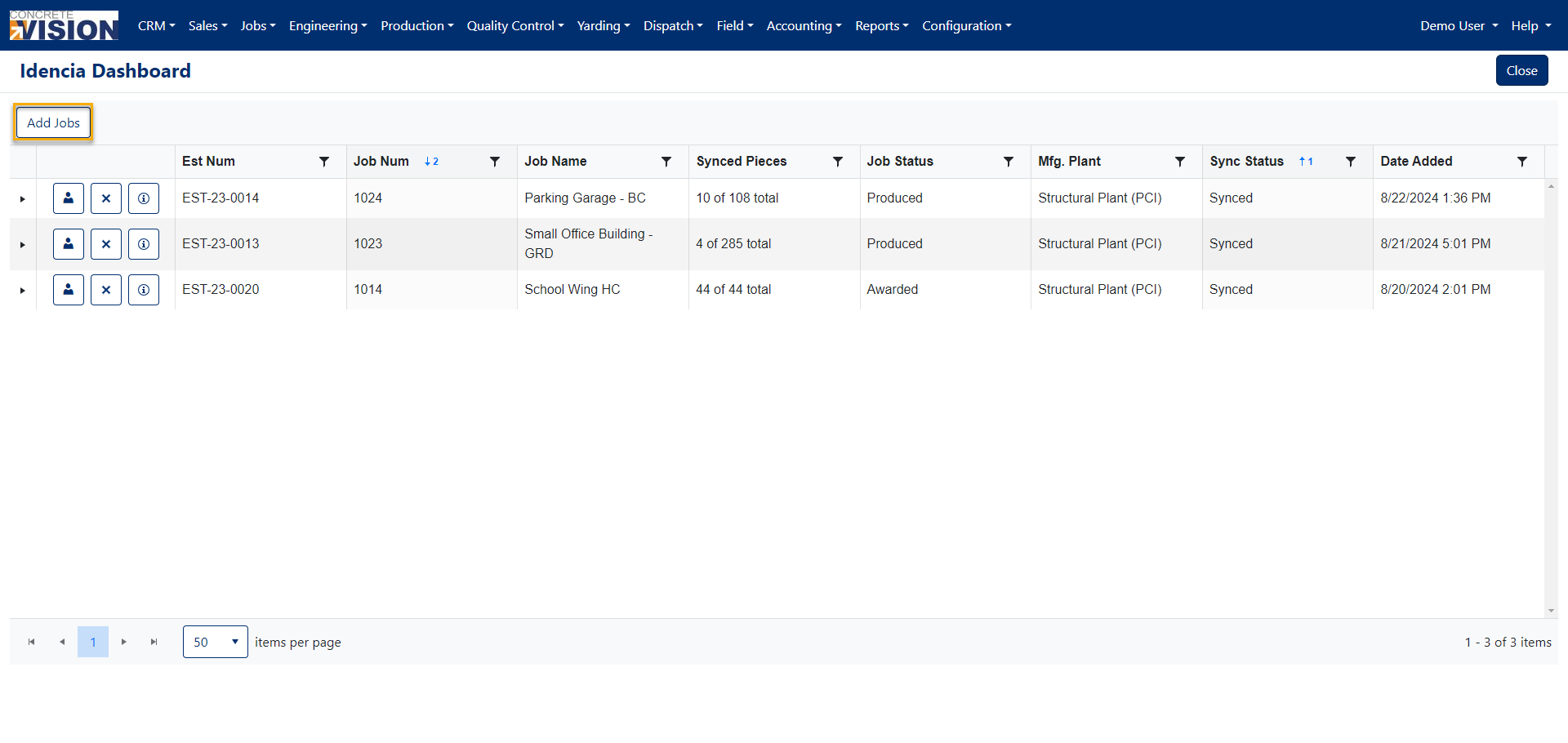 Figure 2
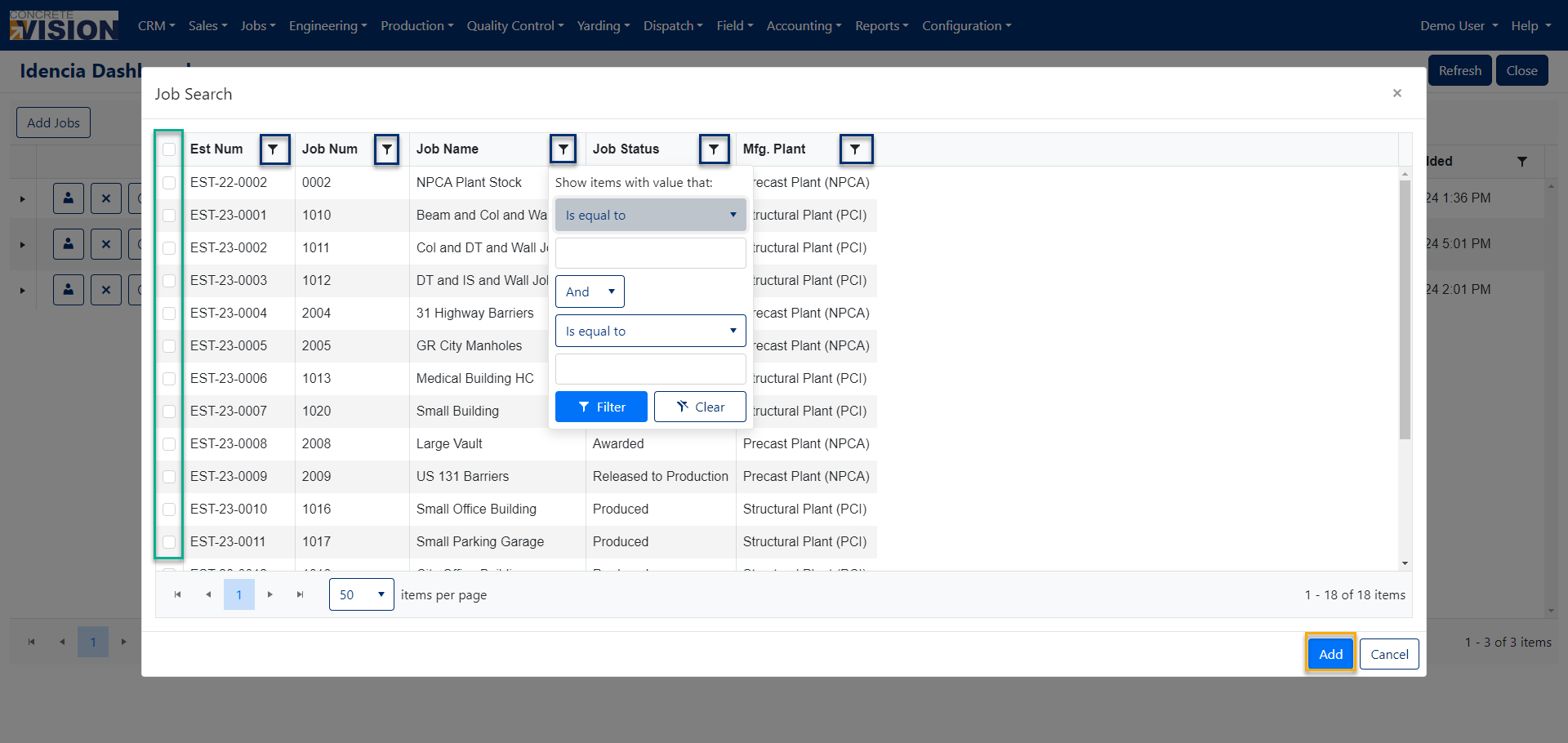
Figure 3
Was this article helpful?
That’s Great!
Thank you for your feedback
Sorry! We couldn't be helpful
Thank you for your feedback
Feedback sent
We appreciate your effort and will try to fix the article